🔑 What is the User Access Summary?
The User Access Summary is a built-in tool that lets admins quickly understand why a user has access to a record, object, or permission. Before Winter ’25, it was sometimes hard to track whether access came from:
- a Profile
- a Permission Set
- a Permission Set Group
You’d often have to manually check across different places in Setup.
⚙️ Where to Find It
- Go to Setup → Users → [Select User].
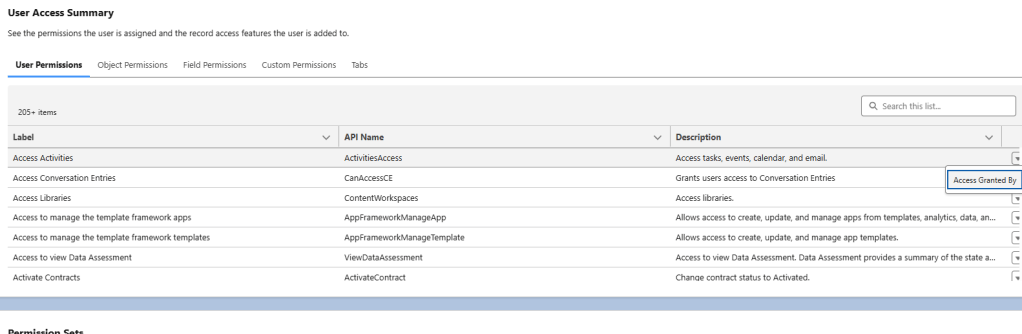
- In the User record, click View Access (User Access Summary).
- Search for the specific object, field, or permission.
- Expand the Access Granted By column to see the source.
📌 Why This Matters
- Speeds up troubleshooting when users complain about access issues.
- Clarity: You immediately know whether to edit a Profile, adjust a Permission Set, or reassign Permission Set Groups.
- Security: Helps admins audit which permission artifacts are granting access, reducing overexposure.
- Preparation for the future: Salesforce is moving toward Permission Set–based access control (Profiles will eventually be minimized), so this tool makes the transition smoother.
🚀 What Changed in Winter ’25?
With Winter ’25, Salesforce made it much more transparent:
- “Access Granted By” Section
- For any Object, Field, or Permission you’re checking on a User, there’s now a clear breakdown of exactly how that access is granted.
- It shows Profile, Permission Sets, and Permission Set Groups in a single consolidated view.
- Access: Modify All on Account
- Access Granted By: Permission Set: Sales Admin PS
- Clickable Details
- You can drill down into the granting item. For example, click the Permission Set name and open it directly.
- More Objects Supported
- Winter ’25 expanded this feature to cover Standard & Custom Objects, Tabs, and Record Types.
- Previously, it was limited to just permissions and some objects.
- Centralized Troubleshooting
- No more jumping between Profile settings and Permission Set assignments—everything is visible on the User Access Summary page
Example Use Case (Admin Troubleshooting)
Scenario:
A Sales Manager says:
“I can edit Opportunities but not see the Close Date field. Why?”
With Winter ’25 User Access Summary:
- Open the User Access Summary for that user.
- Search for the Opportunity → Close Date field.
- You’ll see something like:
- Access: Read-Only
- Access Granted By: Profile = Sales Profile
- Now you know the field restriction is coming from the Profile, not a Permission Set. ✅
 Cloud With Abhi | Salesforce Tips, Code & Career