Tag: mcp

  • Named Query API: Give Your AI Agents Data Access Without Writing a Single Line of Apex

    Hey folks, Abhi here!

    I’ve been spending a lot of time with Salesforce Hosted MCP Servers and Agentforce lately. And the one feature that genuinely made me go “oh, that’s clever” wasn’t a fancy agent or a big AI model. It was a humble little thing called Named Query API.

    If you’re an admin who’s been wondering how to let AI agents read your Salesforce data safely, without handing them the keys to the entire org and without begging a developer for an Apex class, this one’s for you.

    So what is a Named Query?

    Simple version: it’s a SOQL query that you save in Setup, give a name, and Salesforce turns it into a reusable API.

    That’s it. You define SOQL queries from which you can then create custom agent actions for agents, and expose them as REST APIs for use by external applications. Write the query once, use it everywhere.

    The magic is in the parameters. Instead of hardcoding a value, you use a colon bind like :accountname. Whoever calls the query (an integration, an Agentforce agent, or an MCP client like Claude) only supplies that value. They can’t change the query itself.

    Why should admins care?

    Think about how we’ve traditionally given agents access to data. For Agentforce agents, data access is typically handled through tools such as autolaunched flows or Apex classes. With an autolaunched flow, you can use a Get Records element to retrieve data and return it as flow output.

    Nothing wrong with that. But building a whole autolaunched flow just to fetch a record and its related list? That’s a lot of clicks for a read operation. And the Apex route means a developer, a test class, and a deployment.

    With Named Query, all you need to do is to write the SOQL query using a dedicated UI instead of creating a flow or writing an Apex class.

    The other big win is control. If you give an AI agent a generic “run any SOQL” tool, it’ll happily write its own queries across whatever objects the user can see. That’s flexible, but unpredictable. A Named Query is the opposite: fixed objects, fixed fields, fixed filters. You decide exactly what the agent gets to see, and you test it once.

    An example: Account 360 in one call

    Say your sales team keeps asking an agent things like “give me a quick summary of Acme Corp.” To answer well, the agent needs the Account, its key Contacts, and its open Opportunities.

    Here’s a Named Query called AccountSummary that does exactly that:

    sql

    SELECT Id, Name, Industry, Type, AnnualRevenue, Owner.Name,
    (SELECT Id, Name, Title, Email FROM Contacts LIMIT 5),
    (SELECT Id, Name, StageName, Amount, CloseDate
    FROM Opportunities WHERE IsClosed = false)
    FROM Account
    WHERE Name = :accountname
    LIMIT 1

    See those two subqueries? That’s the part I love. One call returns the Account, its top Contacts, and its open pipeline together. The agent doesn’t need to make three separate lookups and stitch things together, and it gets clean, complete, related data in one response. That’s exactly what it needs to give a useful answer instead of a half-baked one.

    How to create one (step by step)

    Here’s the flow in Setup:

    1. Search for Named Query API in Setup and click New.
    2. Give it a label and API name. Heads up: the API name must begin with a letter and can contain only alpha-numeric characters, so no underscores.
    3. Enter the API version.
    4. Write a really good description. I’ll come back to why this matters so much.
    5. Paste your SOQL with your :parameter bind in the WHERE clause.
    6. Click Validate. The API endpoint is automatically created and displayed, something like /services/data/v65.0/named/query/AccountSummary?accountname=<name>.
    7. Add a description for each parameter.
    8. Save.

    If you want to use it as an Agentforce action, there’s an extra step. On the User Interface page, select Enable Salesforce Platform REST API, Named Query for Agent Actions (Beta). After you enable the beta and create a Named Query API, it’s automatically displayed in Setup > API Catalog. Manually activate Named Query APIs in the API Catalog to make them available as agent actions.

    Note that the agent action piece is still labeled beta in the docs, so check your org’s current release notes before building anything production-critical on it.

    Plugging it into an MCP server

    This is where it gets fun for anyone experimenting with Claude, ChatGPT, or other AI clients. Salesforce Hosted MCP Servers let you build custom servers, and custom tools let you expose Apex Invocable Actions, @AuraEnabled methods, Apex REST methods, Flows, and Named Queries as MCP tools without writing connector code.

    You build a custom server in Setup, add your Named Query as a tool, activate the server, and connect your AI client to the server URL. From there, the AI client sees your query as a tool it can call, complete with the description and parameters you wrote.

    Security: the part admins will love

    Named Queries don’t bypass your security model. With hosted MCP, your existing permissions automatically apply — CRUD, FLS, sharing rules, and all the other controls you’ve already mastered. Every transaction runs as the authenticated user, without anonymous service accounts or a new security model to learn.

    For Agentforce, the same idea applies: you’ll need to ensure that the user for whom the agent will invoke the Named Query API is authorized with read access to the object being queried.

    So if a sales rep can’t see the AnnualRevenue field, the agent working on their behalf can’t either. No new permission model to learn. Your profiles, permission sets, and sharing rules just keep doing their job.

    Gotchas to watch for

    1. Descriptions are your prompt. This is the big one. The AI decides when to use your query based on its description. The docs say it directly: if you intend to use the Named Query API as an agent action, AI agents will use it to understand when it’s optimal to select this action. A lazy description like “gets account” won’t cut it. Write something like “Returns an Account’s summary by name, including industry, owner, top contacts, and open opportunities.”

    2. Parameters only work in simple places. In a WHERE clause, use parameters in simple expressions such as name = :name, and with the logical operators AND, OR, NOT. Things like IN expressions don’t support parameters, so plan your filters accordingly.

    3. Limiting results has a naming rule. If a LIMIT clause in the top-level query has a colon parameter, it must be named maxrecords. Easy to miss, annoying to debug.

    4. Watch out for name-based lookups. Filtering on Name works great in a demo, but in real life? Two Accounts called “Acme” returns ambiguous results. A user typing “Acme Inc” when the record says “Acme Corporation” returns nothing. Your agent needs to handle both cases gracefully, ideally by asking for something unique instead of guessing. Consider a second Named Query keyed on a unique field like an external ID or Account Number, and describe both clearly so the agent picks the right one.

    5. Always add a LIMIT. Don’t let an agent accidentally pull back thousands of records. Keep your queries tight, including inside subqueries.

    When to use Named Query vs Flow vs Apex

    My rule of thumb:

    Named Query when you just need to read data, especially a record with its related lists. Fast to build, easy to maintain, no code.

    Flow when there’s logic involved: decisions, calculations, or you need to create or update records.

    Apex when you need complex transformations, callouts, or heavy processing that neither of the above can handle.

    Think of Named Query as your clean, safe read layer. It won’t replace Flow or Apex, but it’ll take a big chunk of simple “go fetch this for me” work off their plate.

    Wrapping up

    Named Query API is one of those features that sounds small until you use it. For admins, it means you can give AI agents and integrations precise, secure, read-only access to exactly the data they need, with nothing more than SOQL and a good description.

    Try building one in your dev org this week. Start with something simple like the Account summary above and wire it up to Agentforce or a hosted MCP server. You’ll be surprised how fast it goes.

    Got questions or a cool use case? Drop it in the comments. Happy querying!
  • Headless 360 Is Headless… Until Something Breaks

    Hey folks, Abhi here!

    I’ve spent the last few weeks testing Salesforce Headless 360 hands-on: connecting Claude to my org through a custom MCP server and letting the agent call my own automation as a tool. When it works, it feels like magic. When it doesn’t, you get one very unhelpful sentence and a trip back into Setup.

    In this post I’ll cover what I tested, what broke, how I debugged it, and what I think has to evolve before Headless 360 is ready for real-world agent work. I’ll also share what you can do today so your agents aren’t flying blind.

    Let’s get into it.

    First, a Quick Refresher on Headless 360

    If you haven’t been following along, Headless 360 is Salesforce’s big push to make the platform usable without the UI. Salesforce made Hosted MCP Servers generally available in April, and followed up with the Headless 360 MCP Server in Beta in early July.

    MCP (Model Context Protocol) is the open standard that lets AI clients like Claude, ChatGPT or Cursor call tools in other systems. With Hosted MCP Servers, Salesforce handles the hosting, authentication and permission enforcement for you.

    The part admins should care about most is custom MCP servers. You can expose Apex Invocable Actions, @AuraEnabled methods, Apex REST methods, Flows and Named Queries as MCP tools without writing connector code. Your existing automation can become an agent tool with a bit of configuration in Setup.

    Things have also moved quickly since spring. Salesforce has since expanded Headless 360 with a Data 360 MCP Server, a Slackbot MCP Client, more than 100 reusable Agent Skills, and capabilities across Marketing, Sales, Service, Commerce and more.

    So the vision is clear: agents do the work, and Salesforce provides the trusted business logic underneath.

    What I Tested

    My setup was simple:

    • A custom MCP server in my org, exposing one custom tool
    • The tool takes a handful of inputs, creates a couple of records and returns two IDs as outputs
    • Claude as the MCP client, connected through OAuth

    I gave Claude the inputs in plain English, and it mapped them to the tool’s input schema and called it. On a successful run, I got both IDs back within seconds.

    That’s the dream scenario: no clicking through tabs, no screen flows, just a conversation.

    What Happened When It Failed

    The first two attempts didn’t succeed. Here’s everything the agent got back:

    UNKNOWN_EXCEPTION
    An error occurred when executing...

    It didn’t include:

    • Which step failed
    • The actual error message
    • Any field-level detail
    • Anything about a validation rule, a duplicate rule, a missing field or a null value

    The agent had nothing to work with. It couldn’t tell whether my inputs were wrong, whether I lacked a permission or whether the automation itself was broken. All it could do was tell me something failed and suggest places to look.

    This is the core problem. An agent can only reason about what it can see. When a human hits an error in the UI, at least there’s a toast message or an error screen to go on. Here the agent got one generic line, which is less information than a human would see.

    The Debugging Detour

    So, back into Salesforce. Here’s the checklist I worked through, and it’s worth bookmarking if you’re building MCP tools.

    Step 1: Figure Out Who the Call Runs As

    My first question was whether this ran as an integration user or as me. For Hosted MCP, the answer is clear: every transaction runs as the authenticated user, scoped through an External Client App with the mcp_api scope, and CRUD, FLS, sharing rules, profile permissions and permission sets all apply.

    In my case, that meant my own System Administrator user, which ruled out most permission issues right away.

    Admin tip: You can confirm the running user by querying ApexLog and checking the LogUser field. The Operation field shows the exact action endpoint that was invoked, so you can match logs to tool calls.

    Step 2: Set a Trace Flag

    Go to Setup → Debug Logs and add a trace flag for the user who authenticated the MCP connection. Without one, you won’t capture anything.

    Step 3: Raise the Debug Level

    This one caught me. My first logs were tiny, around 1.5 KB for the whole transaction, because the default debug level barely logs declarative automation details.

    Set the Workflow category to FINER, with Apex Code and Database at INFO or higher. After that change, the logs showed element-level detail.

    Step 4: Read the Log

    Search the log for error events. The line just before the error usually names the element that failed and the real underlying message. That’s the context the agent should have received in the first place.

    A Twist

    After I raised the debug levels and retried with identical inputs, the call succeeded. That makes it hard to say exactly what went wrong in the earlier runs, and it shows why capturing the real error at the moment of failure matters so much. If the tool response had carried the detail, I’d have my root cause instead of a guess.

    Why This Matters More for Agents Than for Humans

    You might think this is just normal Salesforce debugging, and you’d be right. Admins have been reading debug logs for years.

    The context has changed, though. Headless means the person using the tool may never open Salesforce. It could be a sales rep in Claude, a support agent in Slack, or another agent in an automated chain. When something fails:

    • The end user can’t debug it. They don’t have access to Setup and shouldn’t need it.
    • The agent can’t recover. It doesn’t know whether to retry, fix an input or stop.
    • The admin gets pulled in for issues the agent could have handled with a clear error.

    Salesforce’s own pitch for the Headless 360 MCP Server is that agents understand the relationships, permissions, workflows, validation rules and governance behind how the business operates. I love that. But if the agent understands validation rules on the way in, it should also hear about them on the way out.

    What Needs to Evolve

    Here’s my wishlist for the Salesforce product team:

    1. Return the real fault message in the tool response. If a validation rule blocks the save, pass along the validation rule’s error message. If a required field is missing, name the field.
    2. Identify the failing step. Even just the element or method name would cut debugging time dramatically.
    3. Keep error codes specific. UNKNOWN_EXCEPTION should be a last resort, not the default.
    4. Give agents safe, scoped access to execution context, so a user with the right permissions doesn’t need a human to set trace flags and dig through logs.
    5. Add observability for MCP calls in Setup. A simple view of recent tool invocations, their inputs, outcomes and errors would be a big help.

    Headless only really works if debugging works without the browser too.

    What You Can Do Today

    You don’t have to wait for Salesforce. Here’s how I’m building MCP tools now:

    • Handle faults explicitly. Catch errors in your automation rather than letting them bubble up unhandled. An unhandled fault is what produces the generic exception.
    • Return errors as outputs. Add output variables like isSuccess and errorMessage, and populate them in your fault handling. The agent then gets a readable error and can act on it.
    • Write helpful validation rule messages. “Phone must include country code, e.g. +91” gives an agent something to fix. “Invalid value” doesn’t.
    • Describe your tools well. When an MCP client lists tools, the agent sees only a name, a description, an input schema and an output schema. Spell out input formats in the description, such as dates as YYYY-MM-DD and phone numbers with country code.
    • Keep a debug checklist ready: the running user, a trace flag, Workflow at FINER, and a quick ApexLog query.
    • Test in a sandbox first. Custom MCP servers can be deployed via Metadata API between sandboxes and production, so treat them like any other metadata and test before you promote.

    Wrapping Up

    I’m genuinely excited about Headless 360. Calling trusted Salesforce logic from any AI client, with permissions enforced for you, is a big shift for how our users will work.

    But agents are only as good as the feedback they get. Right now, when a custom tool fails, the agent is mostly in the dark and an admin ends up in Setup reading logs. For headless to be production-ready, error handling has to evolve along with everything else.

    Until then, build your tools defensively, return meaningful errors and keep your debug checklist handy.

    Have you tried Headless 360 or custom MCP servers yet? Hit the same wall? Let me know in the comments. I’d love to hear how you’re handling it.

    Happy building! 🚀

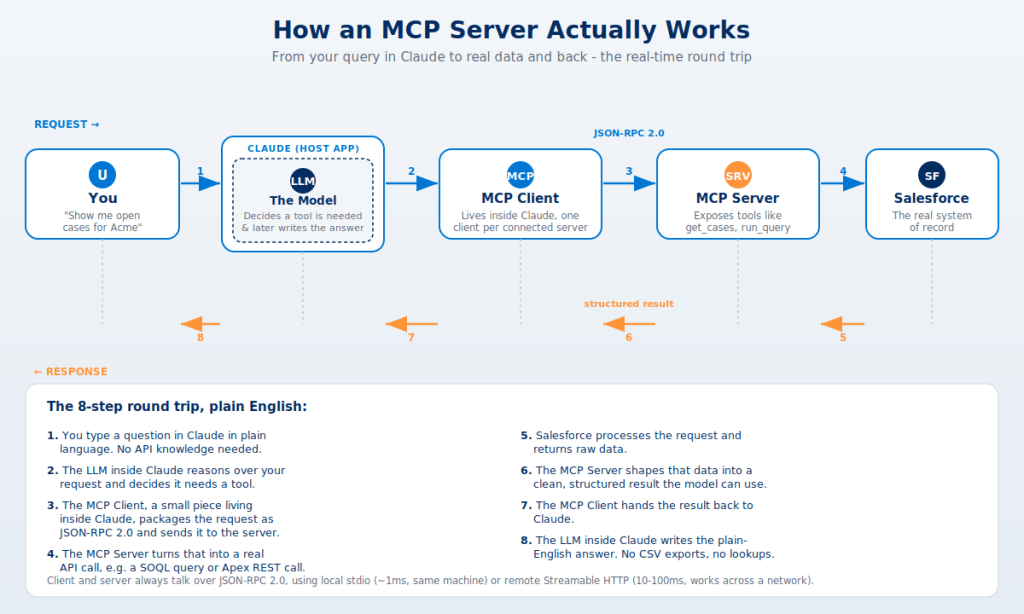
  • MCP Servers, Explained in 8 Steps

    Hey folks, Abhi here!

    Quick one today — let’s demystify “MCP Server” with a simple example, because I keep seeing people throw the term around without explaining what actually happens under the hood.

    The example

    Say you type this into Claude:

    “Show me open cases for Acme”

    Claude doesn’t have your Salesforce data memorized. So here’s what happens in real time, step by step:

    1. You ask the question in plain English.
    2. The LLM inside Claude reads it and realizes — “I need a tool for this, I can’t answer from memory.”
    3. Claude’s MCP Client (a small piece living inside the app) packages that need into a JSON-RPC 2.0 message and sends it to the right MCP Server.
    4. The MCP Server turns that generic request into something Salesforce understands — think a SOQL query or an Apex REST call.
    5. Salesforce runs it and returns raw data.
    6. The MCP Server shapes that raw data into a clean, structured result.
    7. It travels back through the MCP Client, into Claude.
    8. The LLM writes the plain-English answer you see on screen — no CSV export, no manual lookup.

    Why this matters for admins

    That whole 8-step round trip happens in a second or two, every single time. The MCP Server is the translator — it’s the only piece that actually knows how to talk to Salesforce. The MCP Client is just a router. The LLM is the only part actually “thinking” — deciding a tool is needed, and later turning the result into words.

    This is the exact plumbing sitting under every “AI agent talks to Salesforce” demo you’ve seen lately, including Agentforce. If you’re evaluating a third-party MCP server for your org, this is also where you should be asking security questions — who built the server, what does it have access to, and how is that JSON-RPC channel authenticated.

    That’s it — MCP in one example. I’m diving into Headless 360 next, so more on that soon. Catch you in the next one!