Category: Uncategorized

  • Get Your Data Right to Get Your AI Right

    Hey folks, Abhi here!

    I was listening to Marc Benioff this week, and one line stuck with me: “You’ve got to get your data right to get your AI right.”

    Honestly? That might be the most admin thing a CEO has ever said.

    Because here’s what I keep seeing. Teams get excited about Agentforce, spin up an agent in a sandbox, demo it to leadership, and then… it gives weird answers in production. Everyone blames the prompt. Or the model. Or “AI just isn’t ready yet.”

    Nine times out of ten, it’s none of those. It’s the data. The duplicate Accounts, the picklist with “Other”, “other” and “OTHER”, the custom field nobody has touched since 2019.

    So in this post, I want to break down what Benioff actually meant, why it lands squarely on us admins, and give you a practical checklist you can start on this week. No fluff. Let’s go.

    The four layers Benioff talked about

    In the clip, Benioff breaks enterprise AI into four connected layers. Here’s how I’d translate each one into admin language:

    1. Data is the foundation. Your records, fields, picklists, files. If this layer is messy, everything above it inherits the mess.
    2. Applications and semantics give the data business meaning. This is where “Status = Closed Won” actually means something. Think your data model, field definitions, validation rules, and Flows.
    3. Agents do the work. Agentforce reads from the two layers below and takes action.
    4. The interface is where people meet it all: Lightning pages, Slack, the agent chat window.
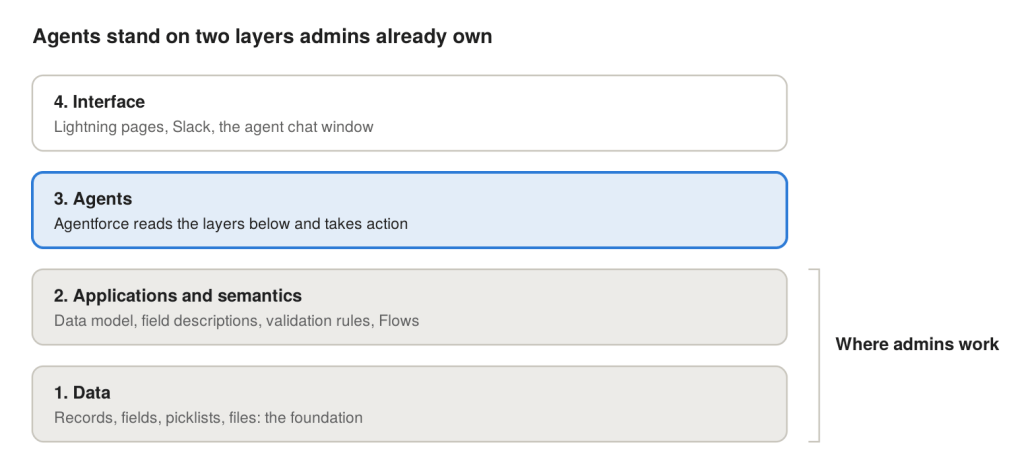
    Notice where agents sit. Third. Not first. They stand on top of two layers that we, the admins, have been building and maintaining for years.

    That’s the whole point. Building more agents is easy now. Making them useful, in a system the business can actually trust, is the hard part. And most of that hard part lives in layers one and two.

    Why agents trip over messy data

    Here’s the mental model I use: an agent reads your org the same way a brand-new hire does. Except it never asks “hey, which of these three Accounts is the real one?” It just picks one and answers with full confidence.

    When a request comes in, Agentforce pulls context from whatever its running user can see: CRM records, Knowledge articles, prompt template merge fields, and Data 360 objects if you’ve wired them up. Then the model reasons over whatever came back. There’s no step in that pipeline that asks “is this data actually good?” Retrieval treats your org as the truth.

    So a few classic admin headaches turn into real AI problems:

    • Duplicates. Three Account records for one customer? The agent might summarise them like three different customers.
    • Stale fields. This one is sneaky. An empty field gets skipped. A stale field gets quoted. If Renewal_Risk__c was last touched in 2024, the agent repeats it like it’s fresh news.
    • Mystery fields. Two fields holding the same fact, and nobody remembers which one is “real”? The agent doesn’t know either.
    • Old Knowledge articles. Your 2023 refund policy isn’t history to an agent. It’s an answer.
    • Access gaps. If the running user can’t see some records, the agent quietly answers from a partial picture. No error. Just wrong.

    And this isn’t just me being dramatic. Salesforce’s own 2026 State of Data and Analytics research found that data leaders estimate roughly a quarter of their organisation’s data is untrustworthy. Gartner has also forecast that through 2026, organisations will abandon 60% of AI projects that aren’t backed by AI-ready data.

    The worst part? A broken Flow throws an error you can screenshot. An agent on bad data fails in fluent, confident English. Users catch it once, start double-checking everything, and then quietly stop using it.

    Your admin checklist before the next agent

    Good news: none of this needs a new license. Just reports, SOQL, Setup, and an honest afternoon. And don’t try to clean the whole org. Scope it to the objects, fields and articles your agent will actually touch.

    • Turn on matching and duplicate rules for the agent’s core objects. Run the Duplicate Record Sets report, pick a survivor record, and merge the rest. Then keep the rules switched on so the mess doesn’t grow back.
    • List every field the agent reads. Go through its topics, actions and prompt templates. For each field, check how fresh the values are with a quick report grouped by Last Modified Date.
    • Kill or fix stale fields. If nobody maintains a field anymore, either fix the process that should update it or remove it from the agent’s grounding. Stale is worse than empty.
    • Clean up picklists. Merge “Other”, “other” and “OTHER” into one value, deactivate retired values, and use restricted picklists so new junk can’t sneak in.
    • Pick one source of truth per fact. Two fields storing the same thing? Choose one, give it an owner, and deprecate the other.
    • Review Knowledge articles in scope. Archive the dead ones, update the old ones, and resolve any that contradict each other.
    • Log in as the agent’s running user. Check permission sets, object access, field-level security and sharing. It should see everything the use case needs, and nothing beyond it.
    • Test with your ugliest records. Don’t demo on clean sample data. Use the Account that just survived a merge, or the customer with the weird history. If the agent handles those, it’ll handle the rest.

    If you only have time for three, do duplicates, stale fields, and the running user check. Those three alone fix most of the “why is the agent saying that?” moments I’ve seen.

    The “semantics” layer: why descriptions suddenly matter

    Remember layer two? This is the one admins tend to underrate.

    For years, field descriptions and help text felt optional. A nice-to-have for documentation day that never came. With agents, they’re context. When an agent sees a field called Status_2__c with no description, it’s guessing. When it sees a clear description of what the field means and when it’s used, it can reason properly.

    Salesforce is leaning hard into this too. Data Cloud was renamed Data 360 at Dreamforce 2025, and it’s now positioned as the data layer that gives Agentforce its context. On top of it sits Tableau Semantics, Salesforce’s semantic layer, which uses the Customer 360 Semantic Data Model to keep metric definitions consistent across clouds.

    The idea, as Salesforce’s architecture team explains it, is simple: define the business logic once, in a governed place, instead of letting every agent and dashboard guess which columns mean “churn risk”. Then agents and human analysts read the exact same definition.

    You don’t need Data 360 to start thinking this way, though. Inside your core org, the admin version of a semantic layer looks like:

    • Field descriptions and help text on every field the agent touches. Write them like you’re explaining to a new hire.
    • Clear, consistent labels and API names. No more Status, Status_New and Status_v2.
    • Specific topic and action instructions in Agentforce. Instead of “check order status”, name the exact field and object to look at.
    • Documented relationships. Make sure lookups and parent Accounts actually reflect how the business works.

    It’s boring work. It’s also the work that turns a cool demo into something people trust on a Monday morning.

    Wrapping up

    Here’s my honest take. Agentforce isn’t magic, and it isn’t broken either. It’s a mirror. It reflects whatever state your org is in, just faster and with more confidence.

    That’s actually great news for admins. The skills that make agents work are the skills we already have: data quality, clean data models, good security, clear documentation. The stuff we’ve been asking for budget for since forever just became the most important part of the AI story.

    So here’s my challenge for this week. Pick one process your team wants an agent for. Spend one afternoon running the checklist above against only that process. Write down what you find. Either you’ll go into the pilot with real confidence, or you’ll have found the actual project before it burned a quarter.

    And I want to hear from you: what’s the messiest part of your org’s data? Duplicates? Mystery fields? A Knowledge base from 2019? Drop it in the comments. I read every one.

    Until next time, keep it clean, folks! 🚀

    Sources

  • Named Query API: Give Your AI Agents Data Access Without Writing a Single Line of Apex

    Hey folks, Abhi here!

    I’ve been spending a lot of time with Salesforce Hosted MCP Servers and Agentforce lately. And the one feature that genuinely made me go “oh, that’s clever” wasn’t a fancy agent or a big AI model. It was a humble little thing called Named Query API.

    If you’re an admin who’s been wondering how to let AI agents read your Salesforce data safely, without handing them the keys to the entire org and without begging a developer for an Apex class, this one’s for you.

    So what is a Named Query?

    Simple version: it’s a SOQL query that you save in Setup, give a name, and Salesforce turns it into a reusable API.

    That’s it. You define SOQL queries from which you can then create custom agent actions for agents, and expose them as REST APIs for use by external applications. Write the query once, use it everywhere.

    The magic is in the parameters. Instead of hardcoding a value, you use a colon bind like :accountname. Whoever calls the query (an integration, an Agentforce agent, or an MCP client like Claude) only supplies that value. They can’t change the query itself.

    Why should admins care?

    Think about how we’ve traditionally given agents access to data. For Agentforce agents, data access is typically handled through tools such as autolaunched flows or Apex classes. With an autolaunched flow, you can use a Get Records element to retrieve data and return it as flow output.

    Nothing wrong with that. But building a whole autolaunched flow just to fetch a record and its related list? That’s a lot of clicks for a read operation. And the Apex route means a developer, a test class, and a deployment.

    With Named Query, all you need to do is to write the SOQL query using a dedicated UI instead of creating a flow or writing an Apex class.

    The other big win is control. If you give an AI agent a generic “run any SOQL” tool, it’ll happily write its own queries across whatever objects the user can see. That’s flexible, but unpredictable. A Named Query is the opposite: fixed objects, fixed fields, fixed filters. You decide exactly what the agent gets to see, and you test it once.

    An example: Account 360 in one call

    Say your sales team keeps asking an agent things like “give me a quick summary of Acme Corp.” To answer well, the agent needs the Account, its key Contacts, and its open Opportunities.

    Here’s a Named Query called AccountSummary that does exactly that:

    sql

    SELECT Id, Name, Industry, Type, AnnualRevenue, Owner.Name,
    (SELECT Id, Name, Title, Email FROM Contacts LIMIT 5),
    (SELECT Id, Name, StageName, Amount, CloseDate
    FROM Opportunities WHERE IsClosed = false)
    FROM Account
    WHERE Name = :accountname
    LIMIT 1

    See those two subqueries? That’s the part I love. One call returns the Account, its top Contacts, and its open pipeline together. The agent doesn’t need to make three separate lookups and stitch things together, and it gets clean, complete, related data in one response. That’s exactly what it needs to give a useful answer instead of a half-baked one.

    How to create one (step by step)

    Here’s the flow in Setup:

    1. Search for Named Query API in Setup and click New.
    2. Give it a label and API name. Heads up: the API name must begin with a letter and can contain only alpha-numeric characters, so no underscores.
    3. Enter the API version.
    4. Write a really good description. I’ll come back to why this matters so much.
    5. Paste your SOQL with your :parameter bind in the WHERE clause.
    6. Click Validate. The API endpoint is automatically created and displayed, something like /services/data/v65.0/named/query/AccountSummary?accountname=<name>.
    7. Add a description for each parameter.
    8. Save.

    If you want to use it as an Agentforce action, there’s an extra step. On the User Interface page, select Enable Salesforce Platform REST API, Named Query for Agent Actions (Beta). After you enable the beta and create a Named Query API, it’s automatically displayed in Setup > API Catalog. Manually activate Named Query APIs in the API Catalog to make them available as agent actions.

    Note that the agent action piece is still labeled beta in the docs, so check your org’s current release notes before building anything production-critical on it.

    Plugging it into an MCP server

    This is where it gets fun for anyone experimenting with Claude, ChatGPT, or other AI clients. Salesforce Hosted MCP Servers let you build custom servers, and custom tools let you expose Apex Invocable Actions, @AuraEnabled methods, Apex REST methods, Flows, and Named Queries as MCP tools without writing connector code.

    You build a custom server in Setup, add your Named Query as a tool, activate the server, and connect your AI client to the server URL. From there, the AI client sees your query as a tool it can call, complete with the description and parameters you wrote.

    Security: the part admins will love

    Named Queries don’t bypass your security model. With hosted MCP, your existing permissions automatically apply — CRUD, FLS, sharing rules, and all the other controls you’ve already mastered. Every transaction runs as the authenticated user, without anonymous service accounts or a new security model to learn.

    For Agentforce, the same idea applies: you’ll need to ensure that the user for whom the agent will invoke the Named Query API is authorized with read access to the object being queried.

    So if a sales rep can’t see the AnnualRevenue field, the agent working on their behalf can’t either. No new permission model to learn. Your profiles, permission sets, and sharing rules just keep doing their job.

    Gotchas to watch for

    1. Descriptions are your prompt. This is the big one. The AI decides when to use your query based on its description. The docs say it directly: if you intend to use the Named Query API as an agent action, AI agents will use it to understand when it’s optimal to select this action. A lazy description like “gets account” won’t cut it. Write something like “Returns an Account’s summary by name, including industry, owner, top contacts, and open opportunities.”

    2. Parameters only work in simple places. In a WHERE clause, use parameters in simple expressions such as name = :name, and with the logical operators AND, OR, NOT. Things like IN expressions don’t support parameters, so plan your filters accordingly.

    3. Limiting results has a naming rule. If a LIMIT clause in the top-level query has a colon parameter, it must be named maxrecords. Easy to miss, annoying to debug.

    4. Watch out for name-based lookups. Filtering on Name works great in a demo, but in real life? Two Accounts called “Acme” returns ambiguous results. A user typing “Acme Inc” when the record says “Acme Corporation” returns nothing. Your agent needs to handle both cases gracefully, ideally by asking for something unique instead of guessing. Consider a second Named Query keyed on a unique field like an external ID or Account Number, and describe both clearly so the agent picks the right one.

    5. Always add a LIMIT. Don’t let an agent accidentally pull back thousands of records. Keep your queries tight, including inside subqueries.

    When to use Named Query vs Flow vs Apex

    My rule of thumb:

    Named Query when you just need to read data, especially a record with its related lists. Fast to build, easy to maintain, no code.

    Flow when there’s logic involved: decisions, calculations, or you need to create or update records.

    Apex when you need complex transformations, callouts, or heavy processing that neither of the above can handle.

    Think of Named Query as your clean, safe read layer. It won’t replace Flow or Apex, but it’ll take a big chunk of simple “go fetch this for me” work off their plate.

    Wrapping up

    Named Query API is one of those features that sounds small until you use it. For admins, it means you can give AI agents and integrations precise, secure, read-only access to exactly the data they need, with nothing more than SOQL and a good description.

    Try building one in your dev org this week. Start with something simple like the Account summary above and wire it up to Agentforce or a hosted MCP server. You’ll be surprised how fast it goes.

    Got questions or a cool use case? Drop it in the comments. Happy querying!

  • Headless 360 Is Headless… Until Something Breaks

    Hey folks, Abhi here!

    I’ve spent the last few weeks testing Salesforce Headless 360 hands-on: connecting Claude to my org through a custom MCP server and letting the agent call my own automation as a tool. When it works, it feels like magic. When it doesn’t, you get one very unhelpful sentence and a trip back into Setup.

    In this post I’ll cover what I tested, what broke, how I debugged it, and what I think has to evolve before Headless 360 is ready for real-world agent work. I’ll also share what you can do today so your agents aren’t flying blind.

    Let’s get into it.

    First, a Quick Refresher on Headless 360

    If you haven’t been following along, Headless 360 is Salesforce’s big push to make the platform usable without the UI. Salesforce made Hosted MCP Servers generally available in April, and followed up with the Headless 360 MCP Server in Beta in early July.

    MCP (Model Context Protocol) is the open standard that lets AI clients like Claude, ChatGPT or Cursor call tools in other systems. With Hosted MCP Servers, Salesforce handles the hosting, authentication and permission enforcement for you.

    The part admins should care about most is custom MCP servers. You can expose Apex Invocable Actions, @AuraEnabled methods, Apex REST methods, Flows and Named Queries as MCP tools without writing connector code. Your existing automation can become an agent tool with a bit of configuration in Setup.

    Things have also moved quickly since spring. Salesforce has since expanded Headless 360 with a Data 360 MCP Server, a Slackbot MCP Client, more than 100 reusable Agent Skills, and capabilities across Marketing, Sales, Service, Commerce and more.

    So the vision is clear: agents do the work, and Salesforce provides the trusted business logic underneath.

    What I Tested

    My setup was simple:

    • A custom MCP server in my org, exposing one custom tool
    • The tool takes a handful of inputs, creates a couple of records and returns two IDs as outputs
    • Claude as the MCP client, connected through OAuth

    I gave Claude the inputs in plain English, and it mapped them to the tool’s input schema and called it. On a successful run, I got both IDs back within seconds.

    That’s the dream scenario: no clicking through tabs, no screen flows, just a conversation.

    What Happened When It Failed

    The first two attempts didn’t succeed. Here’s everything the agent got back:

    UNKNOWN_EXCEPTION
    An error occurred when executing...

    It didn’t include:

    • Which step failed
    • The actual error message
    • Any field-level detail
    • Anything about a validation rule, a duplicate rule, a missing field or a null value

    The agent had nothing to work with. It couldn’t tell whether my inputs were wrong, whether I lacked a permission or whether the automation itself was broken. All it could do was tell me something failed and suggest places to look.

    This is the core problem. An agent can only reason about what it can see. When a human hits an error in the UI, at least there’s a toast message or an error screen to go on. Here the agent got one generic line, which is less information than a human would see.

    The Debugging Detour

    So, back into Salesforce. Here’s the checklist I worked through, and it’s worth bookmarking if you’re building MCP tools.

    Step 1: Figure Out Who the Call Runs As

    My first question was whether this ran as an integration user or as me. For Hosted MCP, the answer is clear: every transaction runs as the authenticated user, scoped through an External Client App with the mcp_api scope, and CRUD, FLS, sharing rules, profile permissions and permission sets all apply.

    In my case, that meant my own System Administrator user, which ruled out most permission issues right away.

    Admin tip: You can confirm the running user by querying ApexLog and checking the LogUser field. The Operation field shows the exact action endpoint that was invoked, so you can match logs to tool calls.

    Step 2: Set a Trace Flag

    Go to Setup → Debug Logs and add a trace flag for the user who authenticated the MCP connection. Without one, you won’t capture anything.

    Step 3: Raise the Debug Level

    This one caught me. My first logs were tiny, around 1.5 KB for the whole transaction, because the default debug level barely logs declarative automation details.

    Set the Workflow category to FINER, with Apex Code and Database at INFO or higher. After that change, the logs showed element-level detail.

    Step 4: Read the Log

    Search the log for error events. The line just before the error usually names the element that failed and the real underlying message. That’s the context the agent should have received in the first place.

    A Twist

    After I raised the debug levels and retried with identical inputs, the call succeeded. That makes it hard to say exactly what went wrong in the earlier runs, and it shows why capturing the real error at the moment of failure matters so much. If the tool response had carried the detail, I’d have my root cause instead of a guess.

    Why This Matters More for Agents Than for Humans

    You might think this is just normal Salesforce debugging, and you’d be right. Admins have been reading debug logs for years.

    The context has changed, though. Headless means the person using the tool may never open Salesforce. It could be a sales rep in Claude, a support agent in Slack, or another agent in an automated chain. When something fails:

    • The end user can’t debug it. They don’t have access to Setup and shouldn’t need it.
    • The agent can’t recover. It doesn’t know whether to retry, fix an input or stop.
    • The admin gets pulled in for issues the agent could have handled with a clear error.

    Salesforce’s own pitch for the Headless 360 MCP Server is that agents understand the relationships, permissions, workflows, validation rules and governance behind how the business operates. I love that. But if the agent understands validation rules on the way in, it should also hear about them on the way out.

    What Needs to Evolve

    Here’s my wishlist for the Salesforce product team:

    1. Return the real fault message in the tool response. If a validation rule blocks the save, pass along the validation rule’s error message. If a required field is missing, name the field.
    2. Identify the failing step. Even just the element or method name would cut debugging time dramatically.
    3. Keep error codes specific. UNKNOWN_EXCEPTION should be a last resort, not the default.
    4. Give agents safe, scoped access to execution context, so a user with the right permissions doesn’t need a human to set trace flags and dig through logs.
    5. Add observability for MCP calls in Setup. A simple view of recent tool invocations, their inputs, outcomes and errors would be a big help.

    Headless only really works if debugging works without the browser too.

    What You Can Do Today

    You don’t have to wait for Salesforce. Here’s how I’m building MCP tools now:

    • Handle faults explicitly. Catch errors in your automation rather than letting them bubble up unhandled. An unhandled fault is what produces the generic exception.
    • Return errors as outputs. Add output variables like isSuccess and errorMessage, and populate them in your fault handling. The agent then gets a readable error and can act on it.
    • Write helpful validation rule messages. “Phone must include country code, e.g. +91” gives an agent something to fix. “Invalid value” doesn’t.
    • Describe your tools well. When an MCP client lists tools, the agent sees only a name, a description, an input schema and an output schema. Spell out input formats in the description, such as dates as YYYY-MM-DD and phone numbers with country code.
    • Keep a debug checklist ready: the running user, a trace flag, Workflow at FINER, and a quick ApexLog query.
    • Test in a sandbox first. Custom MCP servers can be deployed via Metadata API between sandboxes and production, so treat them like any other metadata and test before you promote.

    Wrapping Up

    I’m genuinely excited about Headless 360. Calling trusted Salesforce logic from any AI client, with permissions enforced for you, is a big shift for how our users will work.

    But agents are only as good as the feedback they get. Right now, when a custom tool fails, the agent is mostly in the dark and an admin ends up in Setup reading logs. For headless to be production-ready, error handling has to evolve along with everything else.

    Until then, build your tools defensively, return meaningful errors and keep your debug checklist handy.

    Have you tried Headless 360 or custom MCP servers yet? Hit the same wall? Let me know in the comments. I’d love to hear how you’re handling it.

    Happy building! 🚀

  • Stop Infinite Chains: Cap Depth or Switch to Queueable

    Hey folks, Abhi here!

    In my last post on batch chaining, I flagged the recursion trap — a job chaining into itself over and over until it eats your async limits — and then kind of waved my hand at the fix with a quick “just schedule it instead.” That paragraph deserved a lot more than one line, so this post is the deep dive.

    The real question is: when a chain genuinely needs to go deep, what do you actually do to keep it safe? You’ve got two clean answers — cap the depth or switch to Queueable — and picking the wrong one bites you at 2am during a migration. Let’s break down both with real code.

    🔁 First, What’s the Recursion Trap Again?

    Chaining means one job kicks off the next when it finishes. Batch does it from finish(), Queueable does it from execute(). The trap shows up when a job re-enqueues itself — say, to keep reprocessing records until none are left:

    apex

    global void finish(Database.BatchableContext bc) {
    // Danger: no exit condition
    Database.executeBatch(new RetryFailedRecordsBatch(), 200);
    }

    If the exit condition never trips — a record that always fails, a query that always returns rows — you’ve built an infinite chain. It burns through your daily async limits and eventually falls over. The fix isn’t “never self-chain,” because sometimes you genuinely need to. The fix is controlling how deep it’s allowed to go.

    🎯 Option 1 — Cap the Depth

    The simplest guard: pass a counter through the constructor and stop chaining once it hits a ceiling.

    apex

    global class RetryFailedRecordsBatch implements Database.Batchable<SObject> {
    private Integer depth;
    private static final Integer MAX_DEPTH = 5;
    global RetryFailedRecordsBatch(Integer depth) {
    this.depth = depth;
    }
    global Database.QueryLocator start(Database.BatchableContext bc) {
    return Database.getQueryLocator(
    'SELECT Id FROM Integration_Log__c WHERE Status__c = \'Failed\''
    );
    }
    global void execute(Database.BatchableContext bc, List<SObject> scope) {
    // retry logic here
    }
    global void finish(Database.BatchableContext bc) {
    // Only chain again if there's work left AND we're under the cap
    Integer remaining = [
    SELECT COUNT() FROM Integration_Log__c WHERE Status__c = 'Failed'
    ];
    if (remaining > 0 && depth < MAX_DEPTH) {
    Database.executeBatch(new RetryFailedRecordsBatch(depth + 1), 200);
    }
    }
    }

    Kick it off with Database.executeBatch(new RetryFailedRecordsBatch(0), 200);. After 5 links it stops, no matter what. Notice there are two exit conditions, not one — the counter and the “is there work left” check. Never rely on the work-check alone, because a permanently-failing record makes it lie to you forever.

    When to use this: every link genuinely needs QueryLocator-scale volume (thousands to millions of records per run). If each step truly needs Batch Apex’s muscle, stay in Batch and just cap the chain.

    ⚡ Option 2 — Switch to Queueable

    Here’s the thing — most “deep chain” scenarios aren’t actually processing millions per link. They’re doing smaller, step-by-step work that just happens to repeat a lot. That’s Queueable territory, and it chains more cleanly.

    apex

    public class RetryFailedRecordsQueueable implements Queueable {
    private Integer depth;
    private static final Integer MAX_DEPTH = 5;
    public RetryFailedRecordsQueueable(Integer depth) {
    this.depth = depth;
    }
    public void execute(QueueableContext ctx) {
    List<Integration_Log__c> failed = [
    SELECT Id FROM Integration_Log__c
    WHERE Status__c = 'Failed' LIMIT 200
    ];
    // retry logic here
    if (!failed.isEmpty() && depth < MAX_DEPTH) {
    System.enqueueJob(new RetryFailedRecordsQueueable(depth + 1));
    }
    }
    }

    A few reasons this is often the better call for deep chains:

    It doesn’t consume the 5 concurrent Batch slots. Batch jobs compete for a hard limit of 5 active-or-queued jobs org-wide, with up to 100 more held in the Flex Queue. Queueable doesn’t draw from those Batch slots, so a Queueable chain won’t get stuck behind your scheduled cleanups and integrations. (Fair warning: it does still count against the shared org-wide limit for total concurrent async executions — Queueable isn’t unlimited, it just isn’t fighting for the Batch slots specifically.)

    Chaining is native and cleaner. You submit the next job right from execute() with System.enqueueJob() — no finish() gymnastics.

    Mind the depth rules. In production orgs, Salesforce enforces no limit on chain depth — which is exactly why you must cap it yourself. In Developer Edition and trial orgs, the max stack depth is 5 (the initial job plus four chained links), so test with that in mind.

    One child per parent. A running Queueable job can enqueue only one chained job. That’s actually a feature here — it keeps your chain linear and predictable instead of fanning out uncontrollably.

    🛡️ The Piece Both Options Miss: Visibility

    Capping depth stops the runaway. But it doesn’t tell you why a chain died. If link 3 blows a governor limit on an uncatchable error, the job just… stops. The run often looks like it’s still going when it’s actually dead — the silent-stall problem, and it’s brutal to debug mid-migration.

    This is where the Finalizer interface earns its keep with Queueable. Per Salesforce’s docs, a Finalizer runs after your Queueable job completes — success or failure, including uncatchable exceptions — because it executes in its own separate transaction context. That’s the key property: even a limit blowout that kills your job still triggers the Finalizer.

    Best practice is a dedicated Finalizer class (not folding it into the Queueable), which is how Salesforce’s own examples structure it:

    apex

    public class RetryFinalizer implements Finalizer {
    private Integer depth;
    private static final Integer MAX_DEPTH = 5;
    public RetryFinalizer(Integer depth) {
    this.depth = depth;
    }
    public void execute(FinalizerContext ctx) {
    if (ctx.getResult() == ParentJobResult.SUCCESS) {
    // Chain the next link only on clean success + under cap
    if (depth < MAX_DEPTH) {
    System.enqueueJob(new RetryFailedRecordsQueueable(depth + 1));
    }
    } else {
    // Job died — log the reason + tracking id instead of stalling silently
    insert new Async_Run_Log__c(
    Status__c = 'Failed',
    Reason__c = ctx.getException()?.getMessage(),
    Async_Job_Id__c = ctx.getAsyncApexJobId()
    );
    }
    }
    }

    And in the Queueable, attach it at the top of execute():

    apex

    public void execute(QueueableContext ctx) {
    System.attachFinalizer(new RetryFinalizer(depth));
    // retry logic here
    }

    Now a crashed chain gets marked Failed with a reason and a tracking id, instead of sitting on “Running” forever. You still design the step order yourself — the Finalizer just makes sure a silent stall can’t hide. Note that FinalizerContext officially gives you getResult(), getException(), and getAsyncApexJobId() for exactly this.

    One gotcha: the Finalizer runs in a fresh context, so the original Queueable instance no longer exists — don’t try to call back into it. Pass what you need (like the depth counter) into the Finalizer’s constructor.

    Batch Apex has no native equivalent to this, which is another point in Queueable’s favor for anything chain-heavy.

    📊 So, Which Do I Reach For?

    Here’s my actual decision rule:

    SituationApproach
    Every link needs QueryLocator-scale volumeCap the depth, stay in Batch
    Smaller, repeated step-by-step workSwitch to Queueable
    Need failure visibility per linkQueueable + Finalizer
    Need to pass complex objects between linksQueueable
    Genuinely periodic, not really recursiveDon’t chain — schedule it

    The honest summary: I only cap-and-stay-in-Batch when the volume forces me to. The moment the per-link volume drops into “a few hundred records” territory, Queueable wins — native chaining, no fight for the Batch slots, and Finalizers to kill the silent stall.

    🧠 Key Takeaways

    • The recursion trap is about missing exit conditions, not chaining itself.
    • Always guard with two conditions: a depth counter and a “is there work left” check.
    • Cap depth and stay in Batch only when every link needs Batch-scale volume.
    • For smaller repeated work, Queueable chains cleaner and doesn’t consume the 5 Batch slots.
    • In production there’s no enforced chain-depth limit — which is exactly why you must set one.
    • Use a Finalizer so a dead chain gets logged as Failed instead of stalling silently on “Running.”

    That’s the recursion-handling deep dive I owed you after the last post. If there’s a corner of this you want pushed further, drop it in the comments.

    Catch you in the next one!

    — Abhi

  • MCP Servers, Explained in 8 Steps

    Hey folks, Abhi here!

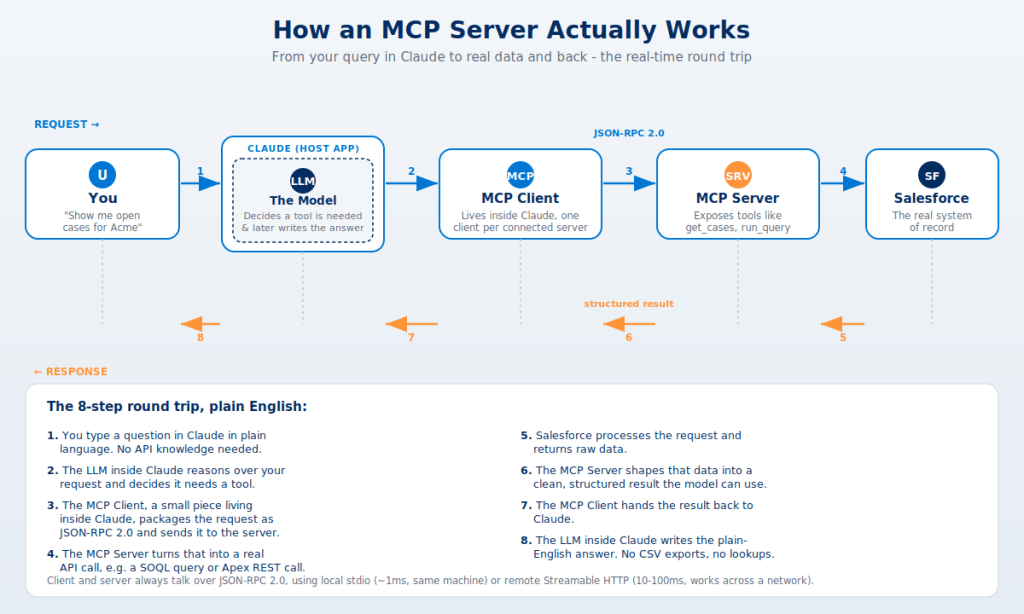
    Quick one today — let’s demystify “MCP Server” with a simple example, because I keep seeing people throw the term around without explaining what actually happens under the hood.

    The example

    Say you type this into Claude:

    “Show me open cases for Acme”

    Claude doesn’t have your Salesforce data memorized. So here’s what happens in real time, step by step:

    1. You ask the question in plain English.
    2. The LLM inside Claude reads it and realizes — “I need a tool for this, I can’t answer from memory.”
    3. Claude’s MCP Client (a small piece living inside the app) packages that need into a JSON-RPC 2.0 message and sends it to the right MCP Server.
    4. The MCP Server turns that generic request into something Salesforce understands — think a SOQL query or an Apex REST call.
    5. Salesforce runs it and returns raw data.
    6. The MCP Server shapes that raw data into a clean, structured result.
    7. It travels back through the MCP Client, into Claude.
    8. The LLM writes the plain-English answer you see on screen — no CSV export, no manual lookup.

    Why this matters for admins

    That whole 8-step round trip happens in a second or two, every single time. The MCP Server is the translator — it’s the only piece that actually knows how to talk to Salesforce. The MCP Client is just a router. The LLM is the only part actually “thinking” — deciding a tool is needed, and later turning the result into words.

    This is the exact plumbing sitting under every “AI agent talks to Salesforce” demo you’ve seen lately, including Agentforce. If you’re evaluating a third-party MCP server for your org, this is also where you should be asking security questions — who built the server, what does it have access to, and how is that JSON-RPC channel authenticated.

    That’s it — MCP in one example. I’m diving into Headless 360 next, so more on that soon. Catch you in the next one!

  • Why You Need to Chain Batch Jobs in Salesforce (and How to Do It Right)

    Hey folks, Abhi here!

    So you’ve already gotten comfortable with Batch Apex. You know it processes millions of records in chunks, you know each chunk gets a fresh set of governor limits, and you know it’s your go-to for heavy data jobs. Great.

    But then a requirement lands on your desk that a single batch just can’t handle cleanly:

    “Clean up all the Accounts first, then recalculate Contact rollups, then send a summary email once everything is done.”

    Three steps. Three different objects. Each one depends on the previous one finishing. You can’t just fire off three Database.executeBatch() calls and hope they run in order — because they won’t. They’ll all hit the Flex Queue and run whenever Salesforce feels like it.

    This is exactly where batch chaining comes in. Let’s break down why you need it, when you actually need it, and how to wire it up without shooting yourself in the foot.

    🤔 Why Can’t I Just Run Multiple Batches?

    The instinct is understandable. You’ve got three jobs, so you write:

    apex

    Database.executeBatch(new AccountCleanupBatch(), 200);
    Database.executeBatch(new ContactRollupBatch(), 200);
    Database.executeBatch(new SummaryEmailBatch(), 200);

    Looks reasonable. It’s also wrong.

    The moment you call executeBatch, the job goes into the Apex Flex Queue and runs as a discrete, asynchronous transaction. Salesforce doesn’t guarantee order. Worse, you can only have 5 concurrent batch jobs running at a time. So your “sequence” might run out of order, run in parallel, or get queued in a way that completely breaks your dependency chain.

    If Step 2 depends on Step 1 having finished, parallel execution is a recipe for half-baked data and angry users.

    The whole point of chaining is to enforce sequence: Job B only starts after Job A is completely done.

    ⛓️ What Is Batch Chaining, Really?

    Batch chaining means starting the next batch from inside the finish() method of the current one.

    Remember the three methods of a batch class:

    • start() — collects the records
    • execute() — processes each chunk
    • finish() — runs once, after every chunk has completed

    That finish() method is the magic. It only fires when the entire batch is done. So if you kick off the next job from there, you get a guaranteed sequential handoff.

    apex

    global class AccountCleanupBatch implements Database.Batchable<SObject> {
    global Database.QueryLocator start(Database.BatchableContext bc) {
    return Database.getQueryLocator(
    'SELECT Id, Name FROM Account WHERE NeedsCleanup__c = true'
    );
    }
    global void execute(Database.BatchableContext bc, List<Account> scope) {
    for (Account acc : scope) {
    acc.Name = acc.Name.trim();
    }
    update scope;
    }
    global void finish(Database.BatchableContext bc) {
    // Chain the next job ONLY after this one fully completes
    Database.executeBatch(new ContactRollupBatch(), 200);
    }
    }

    When AccountCleanupBatch is 100% finished, finish() runs and fires off ContactRollupBatch. Clean, sequential, predictable.

    🎯 When Do You Actually Need to Chain?

    Don’t chain just because you can. Chaining adds complexity, so reach for it only when you genuinely need ordered, multi-step processing. Here are the real-world cases I keep running into:

    1. Multi-object data migrations. You migrate Accounts first, then Contacts that reference those Accounts, then Opportunities. Order matters because of lookups and relationships.

    2. Dependent calculations. Job A updates a field, Job B reads that updated field to compute a rollup. If B runs before A finishes, your numbers are garbage.

    3. Staged cleanup jobs. Deduplicate first, then merge, then archive. Each phase has to complete before the next begins.

    4. Reprocessing pipelines. Pull failed integration records, transform them, then push them back out — each stage as its own batch.

    5. Processing more than you can hold in one job. Sometimes a single batch can’t logically cover everything, and you split the work into sequenced stages.

    If your steps are independent and order doesn’t matter, don’t chain — just run them separately and let Salesforce parallelize.

    🧱 A Clean Chaining Pattern

    Here’s the thing — hard-coding new NextBatch() inside every finish() works, but it gets ugly fast. Your jobs become tightly coupled, and you can’t test or run a single job in isolation without editing code.

    A cleaner approach is to pass the “next job” into the constructor, so each batch doesn’t need to know hard-coded what comes after it:

    apex

    global class ChainableBatch implements Database.Batchable<SObject> {
    private Database.Batchable<SObject> nextJob;
    // Pass in whatever should run next (or null to stop)
    global ChainableBatch(Database.Batchable<SObject> nextJob) {
    this.nextJob = nextJob;
    }
    global Database.QueryLocator start(Database.BatchableContext bc) {
    return Database.getQueryLocator('SELECT Id FROM Account');
    }
    global void execute(Database.BatchableContext bc, List<SObject> scope) {
    // your processing logic
    }
    global void finish(Database.BatchableContext bc) {
    if (nextJob != null) {
    Database.executeBatch(nextJob, 200);
    }
    }
    }

    Now your chaining logic lives in one place and each job stays decoupled. You can run a single job by passing null, or wire up a full chain when you need it. This is the same idea behind the reusable “ChainableBatchJob” patterns floating around the community — decouple the orchestration from the individual jobs.

    ⚠️ Things That’ll Bite You

    A few gotchas worth knowing before you ship this to production.

    Don’t chain a batch into itself recursively. If your finish() re-runs the same batch unconditionally, you’ve built an infinite loop that’ll chew through your async limits. If you need a job to run on a schedule, schedule it with System.schedule() instead of self-chaining.

    Watch your Flex Queue. You can hold up to 100 jobs in the Apex Flex Queue and run 5 concurrently. Chaining is friendly here because each chain only adds one job at a time, but if other processes are flooding the queue, your chained job still has to wait its turn.

    You can’t call @future from a batch. A common reflex is to fire a future method from inside execute(). Salesforce blocks this to prevent runaway async chains. If you need async work mid-batch, use Queueable Apex instead — you can call a Queueable from a batch.

    Add error handling in the chain. If Step 1 fails, do you really want Step 2 to run on bad data? Use Database.Stateful to track failures and decide in finish() whether to continue the chain or stop and send an alert.

    🆚 Batch Chaining vs Queueable Chaining

    Quick reality check before you commit to Batch chaining. If your jobs don’t need to process millions of records, Queueable Apex might be the better tool. Queueable natively supports chaining via System.enqueueJob(), handles complex object parameters, and is generally the modern recommendation for multi-step async work.

    A rough rule I follow:

    SituationBest Tool
    Millions of records per stepBatch Apex (chained)
    Multi-step logic, smaller volumesQueueable Apex
    Need to pass complex objects between stepsQueueable Apex
    Simple fire-and-forget calloutFuture method

    If you’ve got fewer than a couple batches’ worth of records, you’re probably better off with Queueable. Batch chaining shines when each individual step genuinely needs the muscle of Batch Apex.

    📊 Key Takeaways

    • Multiple executeBatch() calls don’t run in order — they hit the Flex Queue and run whenever.
    • Chain jobs by calling Database.executeBatch() inside the finish() method, which only runs after the full batch completes.
    • Chain only when steps are genuinely dependent — migrations, dependent calculations, staged pipelines.
    • Decouple your chaining logic instead of hard-coding the next job everywhere.
    • Never self-chain recursively — schedule instead.
    • You can’t call @future from a batch, but you can call Queueable.
    • For smaller, multi-step work, Queueable chaining is often the cleaner choice.

    The biggest lesson? Chaining isn’t about forcing more batches to run — it’s about controlling when they run. Get the sequencing right, and your multi-step jobs become predictable instead of a race condition waiting to happen.

    Catch you in the next one!

    — Abhi

  • Stop Describing Your Whole Org to Find One Object: getGlobalDescribe() vs describeSObjects() vs Type.forName()

    Hey folks, Abhi here!

    Quick question to start: how many times have you written this line without thinking twice?

    apex

    Schema.SObjectType t = Schema.getGlobalDescribe().get(objectName);

    Be honest. It’s muscle memory at this point. It works, your tests pass, you move on with your life. But here’s the thing — that one harmless-looking line is often the most expensive way to do the thing you actually wanted to do. And if your code is heading anywhere near an AppExchange security review, one of these patterns will get you flagged.

    So let’s break down the three usual suspects for resolving and describing an SObject dynamically — what each one actually costs, when to reach for it, and when to keep your hand in your pocket. No fluff, just the stuff that’ll make your Apex leaner and your security reviewer happier.

    The contenders, at a glance

    Before we dig in, here’s the lineup:

    • Schema.getGlobalDescribe() — hands you a Map<String, SObjectType> of every object in the org. Describes everything. Doesn’t resolve Apex classes.
    • Schema.describeSObjects(List<String>) — describes only the names you pass in. Scoped to exactly what you asked for. Doesn’t resolve Apex classes.
    • Type.forName(name) — returns a System.Type you can call newInstance() on. A single type lookup. And yes — it resolves Apex class names too. (Hold that thought.)
    • The forgotten one: Account.SObjectType — the static token. Zero lookup cost, resolved at compile time. Most people forget it exists.

    Now let’s actually use them.

    1. getGlobalDescribe() — the sledgehammer

    getGlobalDescribe() builds a map of all objects in your org. Standard, custom, and every single object dragged in by every managed package you’ve ever installed.

    apex

    // You wanted ONE object. You just described thousands.
    SObjectType t = Schema.getGlobalDescribe().get('Account');

    Here’s the problem: the cost scales with the size of your org, not with your need. In a clean dev org, this feels free — you’ll never notice it. But take that same line into a mature enterprise org running 30 managed packages, and that map can hold thousands of entries. That’s real CPU time to build it and real heap to hold it.

    Now, to be fair — describes are cached per transaction, so it’s the first call that’s expensive, not every call. But you’ve still paid for describing thousands of objects you’re never going to touch. That’s the part that stings.

    Use it when: you genuinely need to enumerate or iterate every object — a metadata explorer, a generic admin tool, a “list all objects” picker. When “everything” is literally what you need, this is the right tool.

    Don’t use it when: you already know the object’s name. Which, let’s be real, is the 95% case.

    2. describeSObjects() — the scalpel

    apex

    SObjectType t = Schema.describeSObjects(
    new List<String>{ 'Account' }
    )[0].getSObjectType();

    This describes only the objects you name. One object, one describe. Need a handful? Pass them all in one call:

    apex

    List<DescribeSObjectResult> results = Schema.describeSObjects(
    new List<String>{ 'Account', 'Contact', 'Opportunity' }
    );

    The cost here is proportional to what you actually asked for — independent of how bloated your org is. That’s the whole point.

    One gotcha: it throws if you pass an invalid name. So when the input comes from a user, config, or a payload, wrap it:

    apex

    private static SObjectType resolveSObjectType(String objectName) {
    if (String.isBlank(objectName)) {
    throw new AuraHandledException('Object name is required.');
    }
    try {
    return Schema.describeSObjects(
    new List<String>{ objectName }
    )[0].getSObjectType();
    } catch (Exception e) {
    throw new AuraHandledException(
    'Object "' + objectName + '" not found or not accessible.'
    );
    }
    }

    Bonus tip — lazy loading: there’s an overload, describeSObjects(types, SObjectDescribeOptions.DEFERRED), that defers loading the expensive child-relationship metadata until you actually ask for it. If you only need field info and not relationships, this trims the cost even further. Most people don’t know it’s there.

    Use it when: the object name is dynamic — from config, a payload, a UI input — and you only want that object’s metadata. Honestly, this should be your default for dynamic describe.

    3. Type.forName() — the wrong tool for SObjects (usually)

    You can resolve an SObject type this way:

    apex

    SObjectType t = ((SObject) Type.forName('Account').newInstance()).getSObjectType();

    But look closely at what just happened: you instantiated an object just to ask it what type it is. That’s already weird. But it gets worse, because Type.forName doesn’t only resolve SObjects — it resolves Apex class names too. Feed it user-controlled input and .newInstance() will happily run the no-arg constructor of whatever class matches that string.

    That’s two problems stacked on top of each other:

    • Performance: you built an instance you never needed.
    • Security: instantiating arbitrary types from user-controlled input is exactly the pattern an AppExchange security reviewer flags. And relying on the (SObject) cast to fail afterward? Too late — the constructor already ran.

    So when should you use it? When you’re doing genuine dynamic Apex — a factory pattern, custom-metadata-driven dispatch, plugin architecture. Stuff where instantiating a class by name is the actual goal:

    apex

    // Legitimate use: build a handler chosen by config — not an SObject lookup
    MyInterface handler = (MyInterface) Type.forName(config.ApexClassName__c).newInstance();

    Don’t use it when: you just want an SObjectType or a describe. Use describeSObjects instead — it physically can’t be tricked into running a constructor.

    The one everyone forgets: the static token

    Here’s the kicker. If you know the object at compile time, you don’t need to describe anything at all:

    apex

    SObjectType t = Account.SObjectType; // free
    DescribeSObjectResult d = Account.SObjectType.getDescribe();

    Zero lookup cost. Whenever the object is hard-coded, reach for this first. No map, no list, no instantiation. It’s the cleanest option and it’s sitting right there.

    A quick word on governor limits

    You might be thinking, “Abhi, describes don’t even count against my SOQL limit, so who cares?” Fair point — describe calls don’t consume SOQL queries, and modern API versions removed the old hard cap on the number of describes you can run.

    But “no hard limit” doesn’t mean “free.” The real ceilings here are CPU time and heap size — and that’s precisely where getGlobalDescribe() quietly eats your transaction alive in a big org. And remember, describes are cached per transaction, so the cost is front-loaded on first access, not spread out per call. Plan accordingly.

    TL;DR — which one, when

    • Object known at compile time → Account.SObjectType
    • Dynamic name, need one (or a few) objects → Schema.describeSObjects(List<String>)
    • You truly need to iterate every object → Schema.getGlobalDescribe()
    • Instantiating an Apex class by name → Type.forName(...).newInstance()
    • Resolving an SObject type from user input → not Type.forName — use describeSObjects

    The rule of thumb is simple: describe exactly what you need, no more. Reach for getGlobalDescribe() only when “everything” is what you need, and keep Type.forName for dynamic class loading — never as a backdoor SObject resolver, especially in code headed for security review.

    So next time your fingers start typing getGlobalDescribe().get(...) out of habit — pause. Ask yourself: do I actually need the whole org? Most of the time, the answer’s no. And swapping that one line for describeSObjects cuts the per-call cost, sidesteps the Type.forName security smell, and sails a lot cleaner through any AppExchange-readiness checklist. Same line of code, massively better behavior.

    Catch you in the next one!

  • Salesforce Summer ’26 for Developers: The Technical Deep Dive

    Hey devs, Abhi back again!

    After my admin-focused Summer ’26 post, a bunch of you reached out asking, “Bro, what about us developers?” Fair point. So here’s the technical companion — all the Apex, LWC, and platform changes that are going to land in your code review queue over the next few weeks.

    Quick heads up: this release has the most impactful Apex security change in years. If you’re upgrading code to API version 67.0, you genuinely need to read the first section carefully. Let’s get into it.

    🚨 The Big One: API Version 67.0 and Apex User Mode

    This is the change everyone’s talking about, and rightly so. Salesforce is finally moving Apex toward secure-by-default behavior. Here’s what shifts when you compile a class at API version 67.0 or later:

    1. Database Operations Run in User Mode by Default

    Previously, SOQL, SOSL, DML, and Database methods ran in system mode — meaning they ignored object permissions, field-level security (FLS), and sharing rules. In v67, the same code now runs in user mode by default.

    So this query:

    apex

    List<Account> accounts = [SELECT Id, Name, Sensitive_Field__c FROM Account];

    In v66 → runs in system mode, returns everything regardless of user permissions. In v67 → runs in user mode, respects the running user’s FLS, object permissions, and sharing rules.

    This is a massive shift. If your code expects to see records or fields the running user doesn’t have access to, those queries may return fewer rows — or throw an exception — where they previously worked fine.

    You can still explicitly opt into system mode when needed:

    apex

    List<Account> accounts = [SELECT Id, Name FROM Account WITH SYSTEM_MODE];

    Or for Database methods:

    apex

    Account acc = Database.query(
    'SELECT Id, Name FROM Account WHERE Rating = \'Hot\'',
    AccessLevel.SYSTEM_MODE
    );

    2. Classes Default to with sharing

    In API v66 and earlier, an Apex class without an explicit sharing declaration defaulted to without sharing (with some exceptions). From v67 onwards, the default is with sharing.

    apex

    // In v67+, this class enforces sharing rules by default
    public class AccountService {
    // No sharing declaration = with sharing now
    }

    My honest advice: always declare sharing explicitly. Don’t rely on defaults for security-critical code. It’s just better hygiene.

    3. WITH SECURITY_ENFORCED is Removed

    If your codebase still uses WITH SECURITY_ENFORCED, you need to replace it. Apex classes set to API v67.0+ that include this clause will not compile.

    Replace it with WITH USER_MODE:

    apex

    // Old (won't compile in v67+)
    SELECT Id, Name FROM Account WITH SECURITY_ENFORCED
    // New
    SELECT Id, Name FROM Account WITH USER_MODE

    WITH USER_MODE is actually better — it supports polymorphic fields and returns the full set of access errors, not just the first one.

    4. Triggers Always Run in System Mode

    Apex triggers now always run in system mode, regardless of API version. You can no longer declare explicit sharing or access modes on triggers. If you had logic depending on user-mode trigger behavior, move it into a handler class where you can control the context.

    What You Should Actually Do

    Old classes are unaffected unless you explicitly bump them to v67. So the danger isn’t automatic — it’s when you upgrade. Here’s my checklist:

    1. Audit your code for queries that rely on system-mode behavior. Service classes, utility libraries, and managed package code are usually the biggest offenders.
    2. Run your test classes with System.runAs() blocks. Without proper runAs, your tests probably don’t actually validate the user-mode boundary.
    3. Don’t bulk-upgrade everything to v67 on day one. Pick one class, test, deploy. Iterate.
    4. Plan for retirements too. Platform API versions 31.0 through 40.0 are deprecated and will fully retire in Summer ’28. If you have ancient integrations, now’s the time.

    Multiline Strings and String Templates in Apex

    Finally. Finally. This is the QoL upgrade I’ve been waiting years for.

    Multiline Strings

    Use triple single quotes to define a multiline string:

    apex

    String myPoem = '''
    Multiline strings are here, hooray!
    You can start using them today.
    Triple quote, then start a new line,
    For example this will work fine,
    Poetry is not my forte!
    ''';

    No more 'line one\n' + 'line two\n' + ... concatenation nightmares.

    String Templates

    Pair multiline strings with the new .template() method to do clean variable interpolation:

    apex

    String message = '''
    Hello ${firstName},
    Your order was dispatched on ${dispatchDate}.
    Thanks,
    The Team
    '''.template(new Map<String, Object>{
    'firstName' => 'Abhi',
    'dispatchDate' => Date.today()
    });

    Email bodies, JSON payloads, debug messages, HTTP request bodies, generated SOQL — everything that used to be a concatenation mess becomes readable.

    LWC State Management (Now GA)

    State Management for Lightning Web Components is officially GA in Summer ’26. If you’ve ever built two components on the same page that need to share state and ended up with a tangle of CustomEvent dispatches plus pubsub plus Lightning Message Service — this is for you.

    Picture an Opportunity page with two components: one listing line items with the ability to add new ones, and another showing the total amount. With State Management, both components can subscribe to a shared state store, and updates from one automatically reflect in the other — no event plumbing required.

    This is a fundamental architectural improvement for any team building complex multi-component pages.

    LWC Live Preview (GA)

    Previously called Lightning Preview, this is now Live Preview and it’s generally available. You can preview a single LWC in your browser or directly in Visual Studio Code without reloading the entire Lightning page.

    From the CLI:

    bash

    sf lightning dev component

    The CLI prompts you for whatever flags it needs. The preview tab updates automatically as you save changes. Single Component Live Preview supports Lightning Data Service wire adapters, @salesforce scoped modules, and Apex controllers.

    If you’ve ever waited 90 seconds for a Lightning page to reload just to verify a CSS tweak, this changes your life. I’m not exaggerating.

    Web Console (Beta) — The New Developer Console

    Salesforce is shipping a client-side IDE embedded directly in Salesforce. Think of it as the modern successor to the old Developer Console.

    What you can do in Web Console:

    • Build and run SOQL queries
    • Configure trace flags and debug log levels
    • Execute anonymous Apex
    • Build, debug, and deploy Apex
    • It opens automatically when you access Apex Classes, Apex Triggers, or Apex Jobs in Setup

    Enable it: Setup → Quick Find → “Development” → Web Console (Beta) → toggle on, then refresh.

    It’s not going to replace VS Code + Salesforce CLI for serious development, but it’s a great quick-fix tool and a much better learning surface for new developers who aren’t ready to set up a local toolchain.

    Release Manager Three-Channel System (Beta)

    This is a really thoughtful addition for teams that want to stay ahead of the release cycle. Salesforce introduced three channels:

    • Standard — The stable production release everyone’s on.
    • Accelerated — Production-ready features that haven’t been released in a major release yet.
    • Dev — New features in active development, often without full documentation.

    Features get promoted from Dev → Accelerated → Standard as they mature. Opting into the Dev channel is how you get access to things like:

    Dynamic Lists (Developer Preview)

    Two new components — lightning-dynamic-list-container and lightning-dynamic-list-item — that use virtualization to render large lists efficiently. Whether you’re displaying 50 or 5,000 items, the browser only renders what’s visible. No more pagination workarounds for big lists.

    To use, opt into the Dev channel in Salesforce Release Manager.

    LWC in Dashboards (GA)

    You can now embed custom Lightning Web Components directly as dashboard widgets. In dashboard edit mode, click +Widget and select Lightning Web Component, configure properties, and you’re done.

    This is huge for analytics use cases. Want a waterfall chart, custom drill-down behavior, or interactive filtering inline on a dashboard? Build it as an LWC and drop it in. No more separate Lightning pages.

    Apex Action Improvements for Flow

    For those building Apex actions to be consumed in Flow Builder, several InvocableActionExtension metadata enhancements just landed:

    • Custom property editors per input (not just for the entire action)
    • Picklists for action inputs — define valid values declaratively
    • Custom headers on the standard property editor
    • Metadata type assignments for inputs

    This is especially valuable for managed package developers. You can ship Flow actions with a guided, polished configuration UX that doesn’t require your customers to read documentation.

    You can also now provide custom styling hooks for your custom Flow Screen Components written in LWC — color, radius, weight, and other CSS attributes. Group them logically and customers get a tidy customization experience that matches their org’s branding.

    A Few Other Wins Worth Knowing

    • External Services support for enums — Include enums in OpenAPI specs and they appear as picklists in Flow Builder.
    • Hosted MCP Servers (GA) — Salesforce-hosted Model Context Protocol servers are now GA. Any MCP-compatible AI client can connect via OAuth.
    • Named Query API (GA) — Expose custom SOQL as scalable actions for REST API clients and AI agents.
    • Voice Toolkit API — Build voice-enabled LWC and Aura components for Service Cloud Voice.

    My Upgrade Strategy

    If I were running this in a real org, here’s how I’d sequence the work:

    1. Spin up a sandbox on the preview track and validate critical Apex against API v67.0.
    2. Identify high-risk classes — anything querying sensitive data, anything without explicit sharing declarations, anything using WITH SECURITY_ENFORCED.
    3. Don’t upgrade everything to v67 in one go. Bump non-critical classes first, test, then move to critical ones.
    4. Enable Web Console (Beta) in a sandbox — great for ad-hoc debugging.
    5. Try Live Preview in your local dev setup. It’ll change how you build LWCs.
    6. Refactor a multi-line string somewhere to feel the joy of triple-quotes.
    7. Evaluate State Management for any multi-component pages you maintain.

    Summer ’26 isn’t flashy on the developer side — but the Apex security changes alone make this one of the most consequential releases in the last few years. Plan the upgrade carefully, test thoroughly, and you’ll come out the other side with a more secure and maintainable codebase.

    What’s the change you’re most excited about? Or what’s the one that has you worried? Drop a comment — I’d love to hear what’s keeping you up at night with this release.

    Catch you in the next one!

    — Abhi

  • Salesforce Summer ’26 Release: The Admin Stuff That Actually Matters

    Hey folks, Abhi here!

    So Summer ’26 is finally rolling out, and honestly? This one’s a bit different. It’s not the kind of release that comes with one big shiny headline — it’s more like Salesforce quietly slipped in a bunch of small wins that are going to make your day-to-day admin life genuinely easier. The kind of stuff where you’ll catch yourself going “wait, finally?” while clicking through Setup.

    I’ve been digging through the release notes (so you don’t have to, you’re welcome 😄), and I’ve pulled out the admin-focused features that I think you’ll actually care about. Let’s get into it.

    First Things First — When Is This Hitting Your Org?

    Here’s the rollout schedule you should have on your calendar:

    • May 8, 2026 — Sandbox preview begins (first wave of early-adopter production instances too)
    • June 5, 2026 — Second production rollout, broader availability
    • June 12–13, 2026 — Final deployment, everyone’s on Summer ’26 by now

    Bro, if you haven’t checked your instance on Salesforce Trust yet, do it now. Search by your instance name or domain, hit “Maintenance,” and you’ll see exactly when your org gets upgraded. Don’t be the admin who finds out on Monday morning.

    The Flow Wins (And There Are Quite a Few)

    If you’re a Flow person — and let’s be real, who isn’t these days — Summer ’26 has some really nice quality-of-life updates.

    Flow Orchestration is now a standard feature. This is huge. Previously, orchestration runs were limited by usage entitlements. Now they’re just included with no usage caps in Enterprise, Performance, Unlimited, all Einstein 1, and Developer editions. So if you’ve been holding back on building multi-step orchestrations because of run limits, that excuse is gone. Time to build.

    Date operators in Decision elements. I know, sounds boring. But how many times have you had to build a janky formula field just to compare two dates inside a Decision? Yeah. That’s over now.

    Scheduled Flow batching. You can now control batch sizes for scheduled flows, which means fewer governor limit headaches when you’re processing large volumes. If you’ve ever had a scheduled flow blow up at 2 AM because someone imported 50,000 records — this one’s for you.

    Element Error Rate monitoring. Salesforce now tracks the error rate of individual flow elements, so when a flow breaks, you actually know which step is causing trouble. Debugging just got a lot less painful.

    Collapsible fault paths. Tiny visual change, big sanity boost. Your canvas finally doesn’t look like spaghetti.

    Unanimous approvals. When you assign an approval step to a group, you can now require all members to approve, not just one. If you’ve ever built workarounds with multiple sequential approval steps to fake this behavior, go ahead and delete that.

    Slack approvals. Approvers can now act directly from Slack — approve, reject, comment — without ever opening Salesforce. To set this up, users need the Connect Salesforce with Slack permission, and both approvers and submitters need Read access to the Approval Submission object. Works with both Advanced Approvals and Flow Approval Processes. Honestly, this alone is going to save your sales managers a lot of “where do I click again?” Slack messages.

    Radio Button Group in Screen Flows. A proper native radio button component on screens. Finally. No more LWC workarounds for a basic UI element.

    The Permission & Security Glow-Up

    This is where Summer ’26 really shines for admins. Salesforce has been quietly fixing some long-standing pain points.

    Field Access Summary in Object Manager (My Personal Favorite)

    If I had to pick one feature to highlight, this is it. There’s a new Field Access option in Object Manager that gives you a single view of who has access to a specific field across your entire org.

    You go to Object Manager → pick your object → click Field Access in the sidebar → pick the field. Boom. You see every profile, permission set, and permission set group granting visibility or edit rights to that field, all in one place.

    If you’ve ever had a stakeholder ask “who can see this Salary field?” and you’ve gone down a 45-minute Setup rabbit hole jumping between profiles and permission sets — those days are done.

    Manage Shared List Views Permission

    A new dedicated permission called Manage Shared List Views. Previously, if you wanted to let users share their personal list views with their team, you basically had to give them Manage Public List Views, which is a much bigger permission that lets them edit or delete public list views across the whole org.

    Now you can grant the narrower permission. Users can share their list views with roles, groups, or territories they belong to without the elevated access. Plus, there’s a new setup toggle that lets users edit shared list views (as long as they have Create and Customize List Views).

    Small change. Big deal for least-privilege security.

    Malware Scanning for Salesforce Files

    Files uploaded to Salesforce now get scanned for malware by default in Summer ’26 orgs (on Hyperforce). If a file is flagged, it goes into a Malicious Files list, and you can configure notifications for users with the Manage Malicious Files permission. You’ll find the setting under Setup → Salesforce Files → Malware Scanning.

    Health Check Notifications

    Health Check now sends weekly notifications to admins by default. So if you’ve been “meaning to check Health Check” for the last three releases (no judgment, we’ve all been there), Salesforce is going to nudge you whether you like it or not.

    SOAP API Login Restrictions

    There’s a new permission called Any API Auth that controls who can authenticate via SOAP API login(). It’s enforced by default in new orgs, and you can opt-in for existing orgs. Worth reviewing if you have integrations using SOAP API.

    Queue Sharing Defaults

    New queues created in Summer ’26 have queue sharing disabled by default. You can change the default for new queues from Sharing Settings. If your queue setup pattern always involves enabling sharing, set the default and save yourself the clicks.

    The UX Changes Worth Knowing

    Chatter is off by default in new orgs. Big one to be aware of. Any org created in Summer ’26 or later will have Chatter disabled. If you spin up a new org and need Case Feed, Experience Cloud Chatter, or any Chatter API features, you’ll need to manually enable it (Setup → Chatter Settings → Edit → Enable). Existing orgs are unaffected. This won’t break anything, but if you’re someone who creates dev orgs and provisions test environments, this is going to catch you off guard at least once.

    New Slack panel on record pages. Instead of Slack/Chatter competing for screen real estate, there’s now a dedicated Slack panel that opens and closes with a click. Cleaner record pages without sacrificing collaboration.

    Accessibility improvements for high zoom levels. A Release Update that adapts page headers and modal windows when users zoom past 200%. Helps your org meet WCAG 2.2 standards. Worth enabling, especially if you have users with visual accessibility needs.

    AI Content Summarizer component. Drop it onto any Lightning page — Account, Opportunity, custom objects, whatever — and users get an AI-generated summary of the record inline. No need to open a separate assistant. It’s still maturing in preview, but this is the kind of feature that’ll quietly change how people use record pages once it’s fully baked.

    What I’d Do Right Now

    If you’re reading this with your morning chai and wondering “okay, where do I start?” — here’s my honest take:

    1. Check your instance upgrade date on Salesforce Trust. Five-minute job. Do it today.
    2. Refresh your sandbox to preview if you can. The features above are way more impactful when you’ve actually played with them.
    3. Audit your approval processes. Slack approvals and unanimous approvals are going to simplify a lot of janky setups.
    4. Try out Field Access Summary as soon as you have access. Trust me, it’ll become your new favorite tool.
    5. Plan for the Chatter default change if you provision new orgs regularly.
    6. Review Release Updates in Setup. A few items need your action — don’t let them slip.

    Summer ’26 isn’t the loudest release, but it’s a really thoughtful one. It feels like Salesforce listened to admin feedback and shipped a bunch of “yes, please” features instead of just chasing the next AI headline (don’t worry, Agentforce got plenty of love too, but that’s a post for another day).

    What feature are you most excited about? Drop a comment below or hit me up on LinkedIn — I’d love to know what’s catching your eye in this one.

    Until next time, happy admin-ing! ✌️

    — Abhi

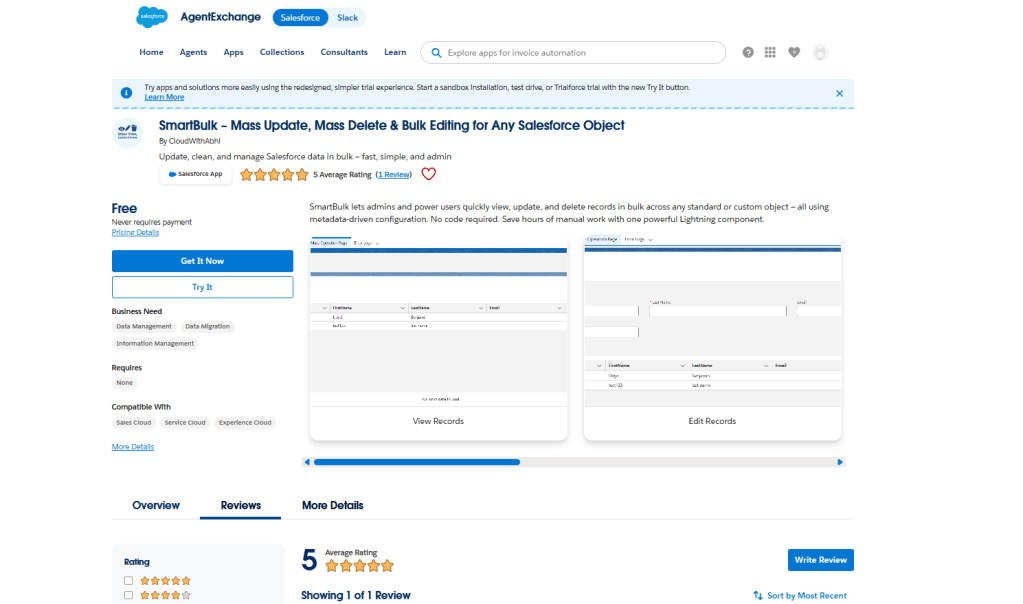
  • SmartBulk is Live on AppExchange — Here’s What That Means

    If you’ve been following along since my first post, you already know what SmartBulk is and why I built it. If you’re new here — short version: it’s a free, Salesforce-native bulk utility for admins who are tired of reaching for external tools just to update or clean up records.

    Back when I wrote that first post, SmartBulk was sitting in AppExchange review. I didn’t know exactly how long it would take. Turns out — it takes a while. There’s a proper security review process, documentation requirements, back and forth. It’s thorough, which is a good thing, but it’s not fast.

    That wait is over.

    ✅ SmartBulk is officially reviewed, approved, and live on the Salesforce AppExchange.


    What SmartBulk does

    SmartBulk gives you three core operations — all from a single page inside Salesforce.


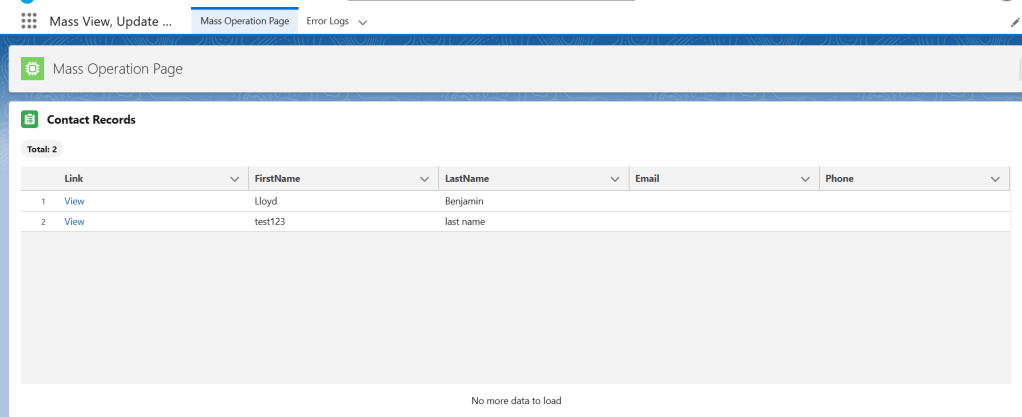
    Bulk View

    Load up any configured object and see all your records in a clean table. Each row has a direct View link so you can jump to any record without losing your place. Good for audits, reviews, and just getting eyes on your data quickly.

    📸


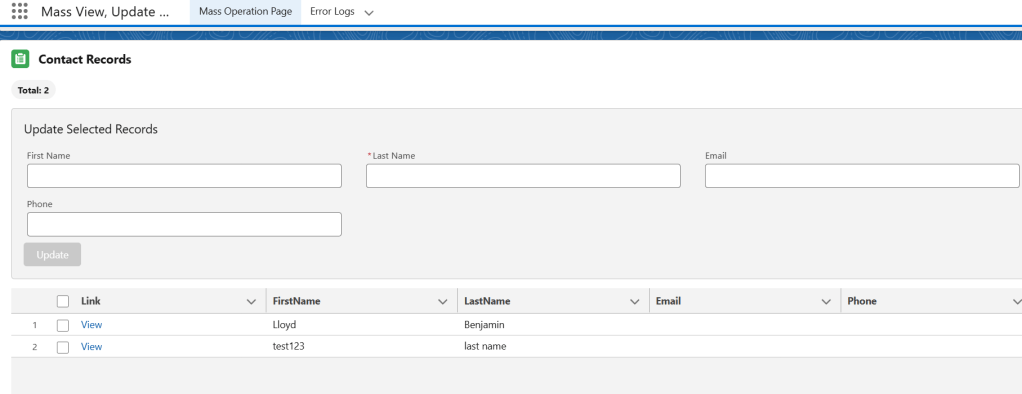
    Bulk Update

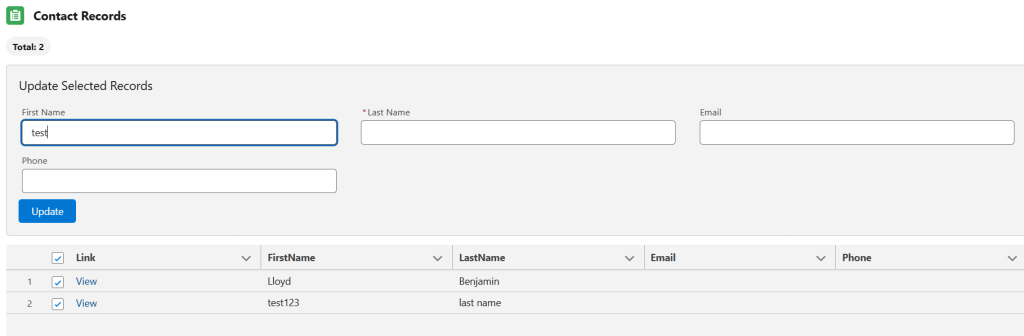
    Select the records you want to change, fill in the fields you want to update, and hit Update. The button stays inactive until you’ve actually selected records and entered a value — so there’s no accidental mass update.

    📸


    📸


    Bulk Delete

    Same idea — select the records, and the Delete button activates only when you’ve checked something. No records selected, no red button. It’s a small thing but it matters when you’re working with real data.

    📸


    📸

    Everything runs inside Salesforce, under the logged-in user’s own access level. No elevated permissions, no backdoors — just your normal user context doing what it’s allowed to do.


    Still built for “native-first” admins

    Nothing has changed here. SmartBulk is still:

    ✅ No Tooling API

    ✅ No Salesforce Inspector

    ✅ No browser extensions

    ✅ No external services or integrations

    ✅ No data stored outside Salesforce

    If your org has a policy against external tooling — or you just personally prefer keeping things inside the platform — this was built with that in mind.


    Who should use it?

    Same answer as before, but now you can actually install it:

    • Salesforce Admins
    • Release / DevOps teams
    • Teams doing ongoing data hygiene
    • Orgs that prefer secure, compliant, platform-native solutions

    Get it here

    SmartBulk is free to install. No trial period, no paid tier, no strings.

    🔗https://appexchange.salesforce.com/appxListingDetail?listingId=dbd99772-e8b5-4551-874c-1bf08eff3e94&tab=r

    If you try it out, I’d genuinely appreciate a review on AppExchange — it helps other admins find it. And if you have feedback or run into anything unexpected, drop a comment or reach out directly.

    More updates coming as the app grows..